Forgot Discord Password? Here’s How to Reset
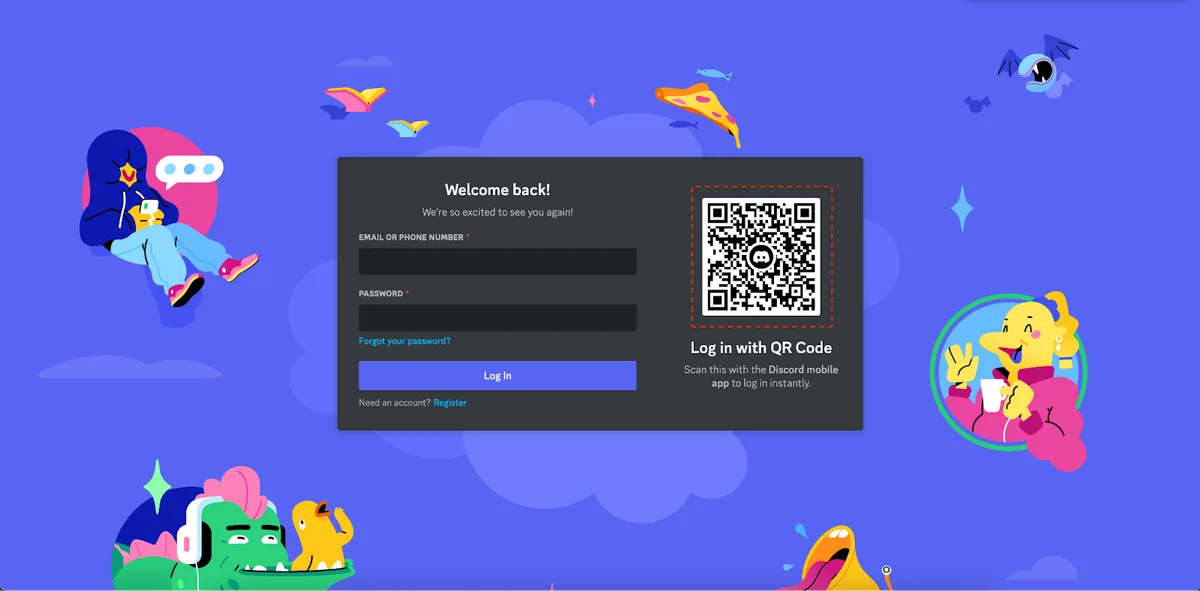
You're locked out of Discord. Maybe you forgot your password. Maybe your account got hacked.
Maybe you haven't logged in since last year and your brain dumped that password like old garbage.
A discord password reset is the only way back in, and it's usually straightforward. Until it isn't. The difference between a five minute fix and a five day nightmare comes down to a few details most people don't think about until they're staring at a red error message.
Discord processes millions of login attempts daily. Account recovery requests are one of the most common support tickets the team handles. As of 2026, the platform requires a minimum 8 character password and a valid email for every account.
If you have both, you're in good shape. If you don't, the process gets trickier.
Let's walk through every path, every edge case, and every mistake that can turn a simple reset into a full account recovery hunt.
Quick Answer
Go to the Discord login page. Click "Forgot Password." Enter your email. Check your inbox for a reset link.
Click it within one hour. Create a new password. Log back in.
That works when you remember your email and still have access to it. If you don't, jump down to the section on account recovery.
Why This Matters More Than You Think
A password reset isn't just about convenience. It's about ownership.
Your Discord account holds private conversations, server memberships, and in some cases, moderation control over communities with thousands of people. Lose access and you lose all of that. A compromised account can spam malware links, scam your friends, or get your server deleted by Trust and Safety.
The standard self service reset works about 80 percent of the time. The other 20 percent trips people up because they don't have backup codes. They lost their email.
Or they never set up two factor authentication properly.
Most users only realize the gaps in their recovery options after they're already locked out. That's when panic sets in.
The Two Main Roads to a Reset
There are two ways to get your Discord password reset done. Which one works depends entirely on what you still have access to.
When email works (and when it doesn't)
If you know your email and can still log into it, the process is simple. Discord sends a one time link. You click it.
You make a new password. Done.
Email fails when:
- You don't remember which email you used
- You no longer have access to that email account
- The email is bouncing or flagged as spam
- You used a temporary email that expired
Discord does not allow password reset via username alone. You must provide the email tied to the account. If you don't know it, the standard reset form will tell you the email doesn't exist, even if your account does.
The 2FA complication nobody warns you about
Two factor authentication adds a layer of security. It also adds a layer of pain during recovery.
If you have a 2FA code generator like Google Authenticator or Authy, the reset process works normally. You enter your email, get the link, set a new password, and then enter your 2FA code when you log in.
The problem appears when you've lost your authenticator app and don't have backup codes. The self service reset still works for the password itself. But you cannot log in after the reset.
You are stuck at the 2FA prompt with no way past it.
That situation requires a support ticket every single time.
Step by Step: The Standard Password Reset
This is the process for 80 percent of users. Follow it exactly and you will be back in under two minutes.
Image source: Web (Bing) / support.discord.com (Web image (fair-use with source credit))
Finding the "Forgot Password" button
Open Discord on desktop, mobile, or the web app. On the login screen, look directly below the password field. The link says "Forgot Password." It is small and easy to miss.
Click it. A new page opens asking for your email address. Type the email you registered with.
Do not type a username. Do not type a phone number. Email only.
Click "Send Reset Link."
What to do when the email doesn't show up
This is where most people panic and start clicking the button again. Do not do that.
Wait 60 seconds. Then check your spam folder. Discord sends from noreply@discord.com or safety@discord.com.
Search those addresses if your inbox has aggressive filters.
If nothing appears after five minutes, check these three things:
- Did you type the right email? Even one typo means the email goes nowhere.
- Is your inbox full? A full mailbox bounces incoming messages.
- Did you accidentally block Discord emails in the past? Check your block list.
Still nothing? Wait one hour. Discord rate limits reset requests.
Clicking the button repeatedly resets the timer. You may need to wait before trying again.
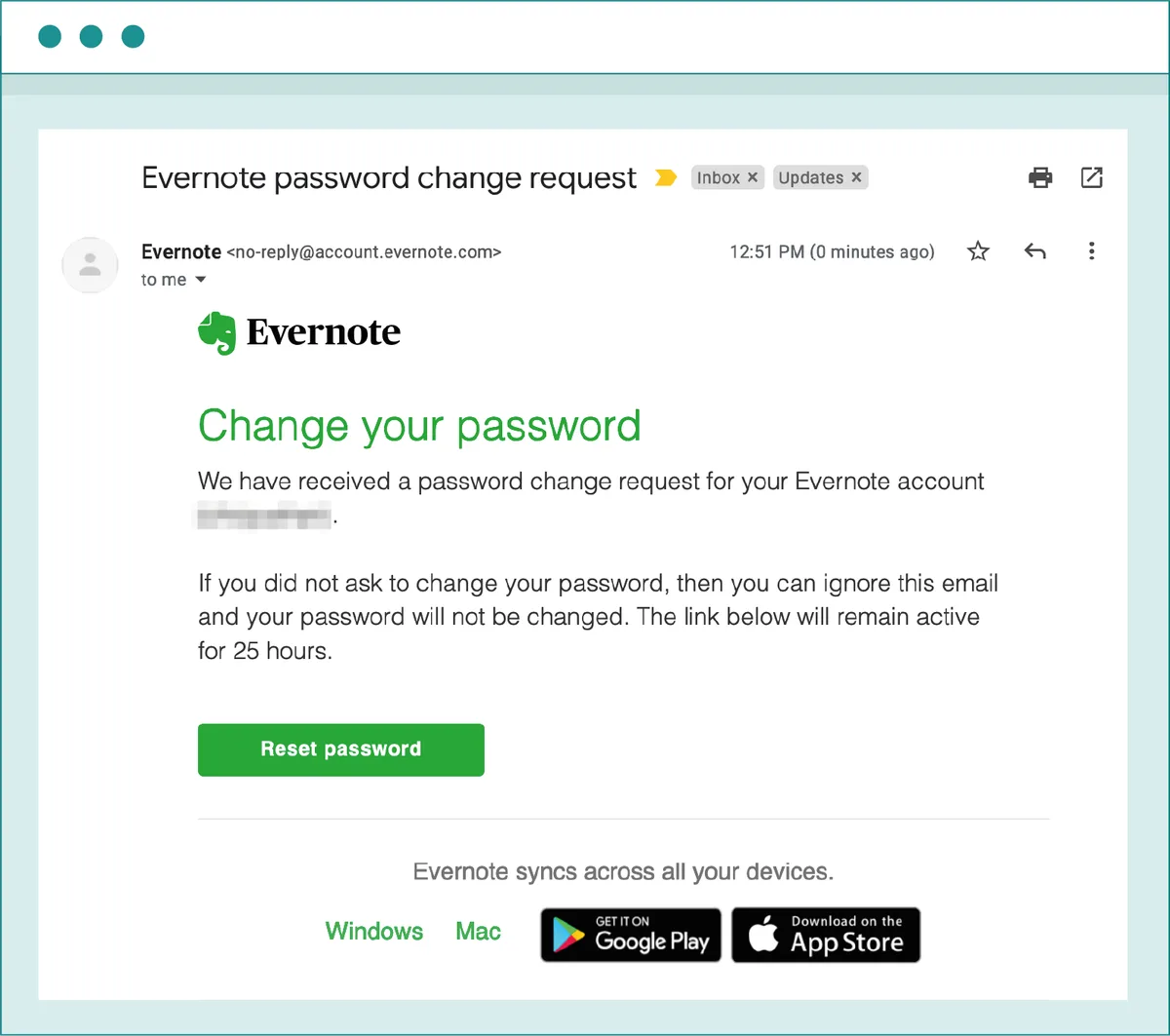
Image source: Web (Bing) / emaillabs.io (Web image (fair-use with source credit))
Creating a new password that actually sticks
When the email arrives, click the link within one hour. After that, the link expires and you have to start over.
The new password must be at least 8 characters. Discord doesn't enforce complexity rules. But using a mix of letters, numbers, and symbols is safer.
Do not reuse the password you just lost. Do not use something you have used on other platforms.
After you set the new password, log in immediately. If you have 2FA enabled, you will be prompted for a code. Enter it from your authenticator app or use one of your backup codes.
When You've Lost Your Email Access
This is where the simple reset ends and the recovery process begins.
Recovering without your old email
Discord does not offer a "forgot email" tool. If you do not know which email you used, your only option is to guess and check. Try every email address you own.
If you ever paid for Nitro, check the payment email on your PayPal or card statement.
If you know the email but cannot access it, you have two paths:
- Recover your email account first through that provider's own recovery process.
- Contact Discord Support and prove ownership of your Discord account.
Path one is faster. Path two takes days.
How to prove you own the account to Discord Support
Discord requires proof that you are the original account owner. They look for specific data points that only the real owner would know.
What they ask for:
- The full email address on the account
- The account creation date (approximate is fine)
- Any past payment receipts (Nitro purchases, gift subs)
- The last known password you used (partial counts)
- Connected accounts (Twitch, Steam, Xbox, PlayStation)
The more of these you provide, the faster the review goes.
What info speeds up the process (and what slows it down)
Fastest approvals include a payment receipt and the original email. Discord Trust and Safety can verify a transaction almost instantly.
Slowing factors include:
- Giving wrong creation dates
- Claiming ownership of an account with no activity history
- Submitting a ticket from a different email than the one you want to recover
- Submitting multiple tickets for the same account
Stick to one ticket. Adding more confuses the system and resets your place in the queue.
The 2FA Lockout Problem
Two factor authentication is great. Until your phone dies, gets wiped, or takes a swim in a toilet.
What happens when you still have backup codes
Backup codes are your lifeline. Discord gives you 8 codes when you first enable 2FA. Each code works exactly once.
If you saved them, use any unused code to log in. Then go to your account settings and disable 2FA or set it up on a new device.
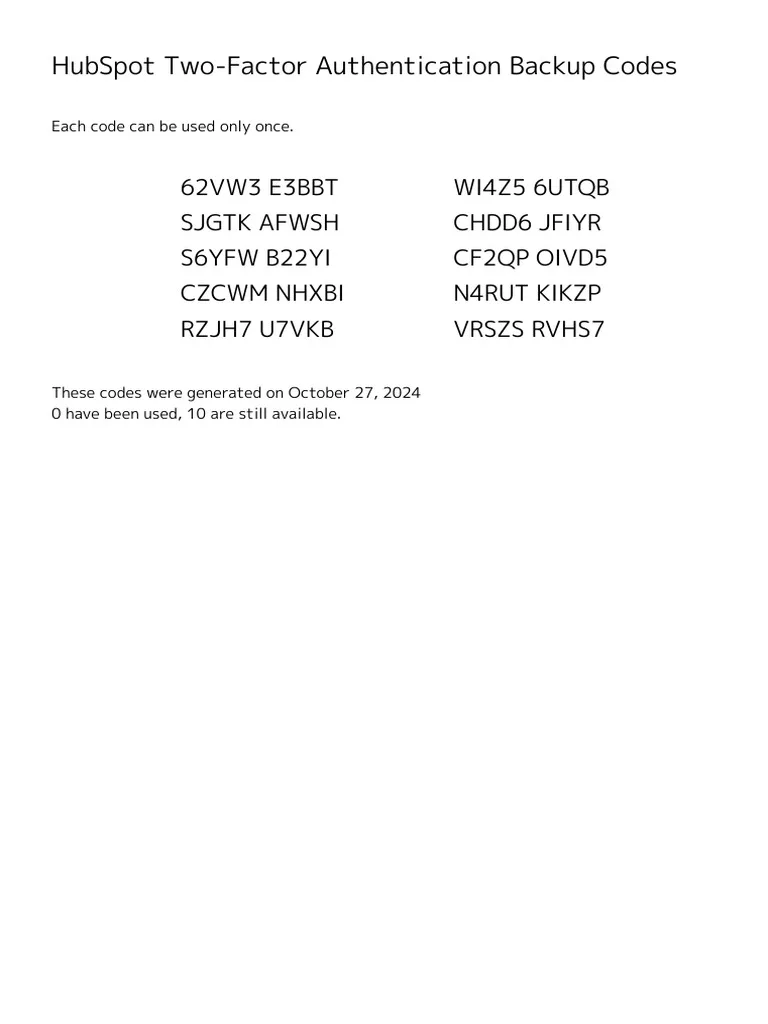
Image source: Web (Bing) / scribd.com (Web image (fair-use with source credit))
What happens when you don't (the support ticket route)
No backup codes means you cannot bypass 2FA on your own. Password reset alone does not disable 2FA. You need Discord Support to remove it from their end.
Open a ticket at Discord's support site. Select "Help and Support" then "I need help with my 2FA." Explain that you lost your authenticator device and have no backup codes.
Discord will ask you to verify account ownership using the same proof we covered above. Once verified, they disable 2FA on their end. You then log in with your password only and set up 2FA again immediately.
Why disabling 2FA remotely takes time
Discord does not do this instantly. The team verifies every detail to prevent account theft. If a hacker claims they lost 2FA and asks for removal, Discord wants to make sure the real owner is the one asking.
Typical response time is 24 to 72 hours. Some tickets resolve in 12 hours. Some take a week.
It depends on the volume of requests and how clean your proof is.
Common Mistakes That Make Everything Worse
A few errors turn a recoverable situation into a permanent loss.
Falling for fake reset emails
When you request a password reset, phishing scammers watch for it. They send fake emails that look identical to Discord's. The link goes to a lookalike page that steals your new password.
Real Discord password reset emails come from noreply@discord.com. The link goes to discord.com or discordapp.com. If the domain looks wrong, do not click.
Check the full URL before typing anything.
| Real Discord Email | Phishing Email |
|---|---|
From noreply@discord.com | From noreply@disc0rd.com (note the zero) |
Links to discord.com or discordapp.com | Links to disc0rd.com or discord-login.com |
| No urgent threats | "Verify now or lose your account" |
| Uses your username in greeting | Uses generic "Dear User" |
Rushing the CAPTCHA
Discord uses CAPTCHA on the password reset page to slow down bots. Rushing through it and failing multiple times can temporarily block your IP address. Fail three times and the block lasts 15 to 30 minutes.
Take your time. Click the crosswalks, busses, and traffic lights carefully. Use the audio challenge if you struggle with the visual one.
Abusing the "forgot password" button too much
Each click sends a new email and resets the rate limit timer. Clicking ten times in five minutes does not give you ten emails. It locks you out of the system for up to 60 minutes.
Click once. Wait five minutes. If nothing arrives, check spam.
Then wait another ten minutes before trying again.
Ignoring the session log
After a reset, your old password no longer works. But any device already logged into your account stays logged in. Discord does not automatically sign out active sessions when you change your password.
Go to User Settings > Authorized Apps. Review the list. Remove anything you do not recognize.
This kicks out anyone who might still have access.
How to Avoid This Entire Situation Next Time
Set this up now while you still have access.
Backup codes: where to keep them safely
Download your 2FA backup codes immediately after enabling two factor. Store them in two places. A password manager is one.
A physical printout in a drawer is another. Do not store them only on your phone. A dead phone takes the codes with it.
Adding a phone number as a second recovery option
Discord allows SMS verification as a backup. Go to User Settings > My Account > Phone. Add your number.
If you ever lose your email or 2FA, SMS gives you a secondary path.
This is not available in all regions. Check your account settings to see if the option appears.
Keeping your email up to date
If you change your email address, update it on Discord immediately. An old email you no longer use is the same as having no email at all. Discord sends a verification link to the new address.
Click it within the time limit.
Enabling login notifications
Go to User Settings > Notifications > Enable "Email me when a new device logs in." Turn it on. You get an email with the device type, location, and time. If you see a login you did not make, change your password immediately.
Creating a strong password from the start
Most password resets happen because people forget weak passwords. Try a passphrase. Pick four random words that form a mental image.
"BlueCorgiJumpingFence" is stronger than "P@ssw0rd1" and easier to remember.
Do not reuse passwords across platforms. Use a unique password for every service. A password manager makes this effortless.
When to Give Up on Self-Service and Open a Support Ticket
Some situations have no DIY fix. You need human help.
What to include in your ticket
Open a ticket using the email you want to recover. Include in your first message:
- The full email address on the account
- Your Discord username and four digit tag
- The approximate date you created the account
- Any payment receipts for Nitro, boosts, or gifts
- The last password you remember
- Any connected accounts (Steam, Xbox, PlayStation, Twitch)
- A clear description of what happened
Be honest. If you shared your password, say so. Discord can see login history anyway.
Image source: Bing (Web (fair-use with source credit))
How long the wait actually takes
| Situation | Typical Response Time |
|---|---|
| Password reset with email access lost | 12 to 24 hours |
| 2FA removal with proof of ownership | 24 to 72 hours |
| Account hacked and email changed | 48 to 96 hours |
| Account with no purchase history | 72 hours to 7 days |
Tickets submitted on Friday evening often get picked up Monday morning. Weekends have minimal staffing. Monday and Tuesday see the fastest responses.
What Discord Support can and cannot do
They can:
- Reset your password
- Disable 2FA
- Change the email on the account after verifying ownership
- Close all active sessions
- Remove malicious authorized apps
They cannot:
- Merge two accounts into one
- Restore an account you voluntarily deleted
- Give you a specific username
- Transfer servers, friends, or messages to a new account
- Override the account deletion timer
Know the limits before you ask.
How to write an effective first message
State the problem in one sentence. List the facts you know. Attach any proof.
State what you need. Thank them.
Do not demand instant service. Do not threaten to leave Discord. Agents respond better to polite requests.
Real Scenarios and Case Examples
Scenario one: simple password reset
Sarah forgot her password. She remembered her email. She clicked "Forgot Password," entered the email, and checked her inbox.
The email arrived in two minutes. She clicked the link, typed a new password, and logged back in. Total time: four minutes.
Scenario two: lost email plus lost 2FA
Marcus changed his email six months ago. He forgot to update it on Discord. He also enabled 2FA and never saved his backup codes.
Then his phone broke.
He submitted a ticket with his old email, his Discord username, and a Nitro payment receipt. Twenty hours later, support replied. They disabled 2FA and changed his email to a new one.
He logged in, set up 2FA on a new phone, and saved his backup codes in two places.
Total time: 24 hours. Outcome: recovered.
Scenario three: hacked account with email changed
Priya's Discord account got hacked. The attacker changed the email, set their own 2FA, and started messaging her friends asking for money.
She submitted a support ticket immediately with her original email, the approximate creation date, and screenshots of the scam messages. Support replied after three days. They asked for more proof.
She provided her typical IP address range and the names of a few friends. Support verified the account and restored access.
Total time: four days. The attacker had messaged 12 friends in that window. Two sent money using gift cards.
The lesson: enable 2FA before someone else does it for you.
Scenario four: 2FA lockout with backup codes saved
Tom dropped his phone in a lake. The authenticator app was gone. But he had printed his backup codes and stored them in his desk drawer.
He requested a password reset via email. He logged in using his new password and one of the backup codes. He disabled 2FA, set it up on a new phone, and printed fresh backup codes.
Total time: 10 minutes. Stress: minimal.
Scenario five: account with no purchase history
Jake created a Discord account three years ago. He never bought anything. He never connected any other accounts.
When he got locked out, he did not remember the email. He submitted a support ticket with only his username. Support asked for more information.
He could not provide anything else. The ticket was closed.
The lesson: attach something to your account. A connected Steam profile, a verified phone number, or even a free Nitro trial creates a data point you can use later.
Frequently Asked Questions
Can I reset my password without my email?
No. Discord requires the registered email to send the reset link. If you do not know or cannot access the email, you must open a support ticket and prove account ownership manually.
How long is the reset link good for?
The link expires one hour after it is sent. After that, you need to request a new one. Discord does not extend this window.
Will I lose my messages and servers after a reset?
No. A password reset only changes your login credential. Your messages, friends list, server memberships, and Nitro subscription stay intact.
Can someone else reset my password if they have my email?
If someone has access to your email inbox and knows your Discord account exists, they can request a password reset and take over your account. Enable two factor authentication to block this. Without your 2FA code, they cannot log in even with a new password.
What if I never set up an email to begin with?
Discord requires an email to create an account. If you used a temporary email that no longer exists, you must provide proof of ownership to Discord Support. Include the original email, approximate creation date, and any purchase history.
How many backup codes do I get?
Eight. Each code works exactly once. After you use all eight, you can generate a new set from your account settings.
Does Discord notify me when my password changes?
No. Discord does not send a notification when your password is changed. Enable login notifications instead.
What happens to my Discord Nitro during a reset?
Nothing. Nitro is tied to your account, not your password. The subscription continues as normal.
Can I recover a deleted account?
No. Account deletion is permanent after a 14 to 30 day grace period depending on your region. During that grace period, you can cancel the deletion by logging back in.
After it expires, the account and all its data are gone forever.
What if I am locked out of my email while support is helping me?
Reply to the same email thread and explain the situation. Include the new email you want them to use. Do not create a new ticket.
That resets your place in the queue.
Does Discord offer phone support for password resets?
No. All account recovery goes through the ticket system. Any phone number claiming to be Discord support is a scam.
Can I use a VPN during the password reset process?
Using a VPN can interfere with the process. Discord flags IP addresses that differ significantly from your usual login location. Disable your VPN temporarily, request a fresh reset link, and complete the process from your normal IP range.
What should I do immediately after regaining access?
Change your password again. Review authorized apps and remove anything suspicious. Check your email and phone number are correct.
Turn on two factor authentication if it was removed. Generate new backup codes and store them in two places. Warn your friends if the attacker sent messages from your account.
Does Discord charge for account recovery?
No. Account recovery and password resets are free. Any service claiming to recover your Discord account for a fee is a scam.
The Bottom Line
The Discord password reset process is not complicated. It is unforgiving when you miss a detail. One wrong email character, one expired link, one missing backup code, and the whole thing stalls.
But that strict recovery process keeps your account safe from everyone except you. The same roadblocks that frustrate you during a reset are the same roadblocks that stop a hacker from stealing your account.
Meet them halfway. Prepare while you have access. Keep your recovery options updated.
Store your backup codes like they are the keys to your digital life.
And when you get back in, take those five minutes to lock things down. Backup codes. Phone number.
Current email. Strong password. Two factor authentication.
Do it now. Your future self will thank you when the login screen stares back at you and your mind goes blank on the password.

Similar Posts