Reset Disney Plus Password: Easy Step-by-Step Guide
You're staring at a screen that says "Incorrect password" and you're pretty sure you typed the right one. Or maybe you haven't logged into Disney+ in months and your brain has happily erased every password you've ever created. Either way, you need to reset your Disney Plus password, and you need to do it without jumping through ten hoops.
Here's the good news: the process is simpler than most streaming services make it. As of 2026, Disney+ uses a centralized account system that covers Disney+, Hulu, and ESPN+ in the US, so one password reset fixes everything. But the path to that reset depends entirely on where you're trying to log in and what you still have access to.
Let's walk through the exact situation you're in and find your way back into your account.
Quick Answer
Go to disneyplus.com on a browser. Click "Log In." Click "Forgot Password." Enter the email tied to your account. Check your email inbox and spam folder.
Click the reset link. Create a new password. Log in again on all your devices.
That's the short version. If any of those steps fails, you'll need one of the detours below.
Understanding the Problem: Why You Can't Get In
Before you start clicking buttons, it helps to know what you're actually dealing with. The "wrong password" message doesn't always mean you forgot your password. Sometimes your account is locked from too many failed attempts.
Sometimes browser autofill has been saving a password that was changed months ago. Sometimes you're typing the right password into the wrong login page. That's more common than you'd think.
The real reason your password stopped working
Disney+ accounts don't expire passwords automatically, so there's no forced-reset scenario tripping you up. The three most common causes for a failed login are simple: you legitimately forgot the password, someone else changed it on a shared account, or you signed up with a third-party service like Apple or Google and never actually created a Disney password in the first place. That third one catches a lot of people.
If you clicked "Sign in with Apple" or "Sign in with Google" when you first subscribed, there's no password to reset because your account was never protected by one.
Account lockouts vs. forgotten passwords vs. system errors
Disney+ doesn't publish its exact lockout threshold, but aggregate user reports suggest you get somewhere between five and ten failed attempts before the system temporarily freezes your account. When that happens, you'll see a message saying your account has been locked for security purposes. This lock typically lasts 30 to 60 minutes.
Trying to reset during the lockout window won't work because the system still sees you as suspicious. Wait an hour, then try the reset flow.
System errors are rarer but they do happen. If you know your password is correct and you can log into Disney+ on another device but not on a specific streaming device, you're probably dealing with an app bug. Delete and reinstall the app before you bother with a reset.
How Disney+ accounts differ from other streaming logins
Disney+ accounts live inside a larger system called My.Disney.com. That's the same login used for Disney World vacation planning, the Disney Store, and other Disney properties. When you reset your Disney+ password, you're technically resetting your My.Disney.com account password.
This means your new password also works for any other Disney service tied to that email. It also means if you have a Disney vacation planner account with a different password, those are separate systems entirely.
In the US, Disney+ bundles with Hulu and ESPN+ add another layer of confusion. If you subscribed through a bundle, your master account might be with Hulu, not Disney. The password reset for those accounts happens on a different page.
We'll cover that further down.
The Two Reset Routes: Email vs. Phone
You have exactly two ways to reset your Disney+ password: an email link or a text message code. Which one works for you depends entirely on what you set up when you created the account.
How email-based reset works (and when it fails)
The email method is the default. Every Disney+ account has an email address attached to it. When you request a password reset, Disney sends a link to that email.
You click the link, type a new password, and you're done. The link stays active for about 24 hours, though some users report shorter windows.
The email method fails when one of three things is true. First, you can't access the email account you used to sign up. Maybe it was an old college address you abandoned years ago.
Second, the email address you think you used isn't the one on file. You might have signed up with a spouse's email or a work account. Third, the reset email goes straight to spam and you never see it.
Always check your spam folder before assuming the system failed you.
How phone verification works (and who can use it)
Disney+ offers phone-based recovery as an alternative, but only if you added a phone number to your account before you got locked out. If you never gave Disney your phone number, this option simply won't appear. The system sends a six-digit verification code via SMS to the number on file.
Enter that code on the website, and you can set a new password immediately.
The phone method is faster than email, and it doesn't depend on your having access to an old email account. It's the best option if you set it up ahead of time. If you haven't, skip to the browser reset section and make a mental note to add your phone number once you're back in.
Which path you should try first based on your situation
If you still have access to the email address on your Disney+ account, use the email method. It's reliable and you don't need anything else. If you don't have email access but you did add a phone number, use the SMS method.
If you have neither, you're in a tougher spot that we'll cover in the support section later.
If you're not sure whether you added a phone number, try the email method first. The system won't penalize you for attempting one route and then switching to the other.
Step-by-Step: Resetting Via Browser
This is the most reliable way to reset your Disney+ password. Always start here before you touch your phone's app or your streaming device's built-in login. Browsers give you the full account management interface.
Apps and device logins cut that interface down and hide options you might need.
Why the browser is your best bet (not the app)
The Disney+ app on your phone, Roku, or smart TV uses a stripped-down login flow. It typically only shows an email field, a password field, and a "Forgot Password" link. That link usually opens your device's default browser anyway, so you're just adding steps by starting in the app.
Go straight to a browser on any computer or phone. It doesn't matter which one. Chrome, Safari, Firefox, Edge, all work the same way.
The exact buttons to click on disneyplus.com
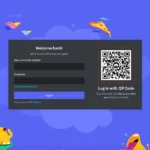
Open a browser and go to disneyplus.com. You don't need to be logged out first. The page loads with a "Log In" button in the top right corner.
Click it.
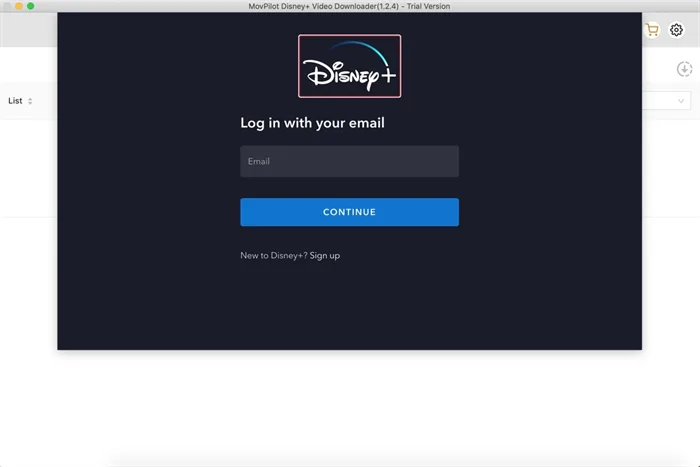
On the login screen, you'll see fields for email and password. Below the password field, there's a link that says "Forgot Password" in smaller text. Click that.
The system asks for the email address associated with your account. Type it in carefully. One typo here and you'll be checking the wrong inbox for hours.
Click the "Send Reset Link" button. A confirmation message appears telling you to check your email. Disney doesn't always send an immediate error if the email doesn't exist in their system for security reasons, so if you don't see the confirmation message, double-check that you typed the right email.
What to do when the reset email doesn't show up
This is the most common frustration point. You requested the reset email, waited two minutes, waited five minutes, and nothing arrived. Here's what to check in order.
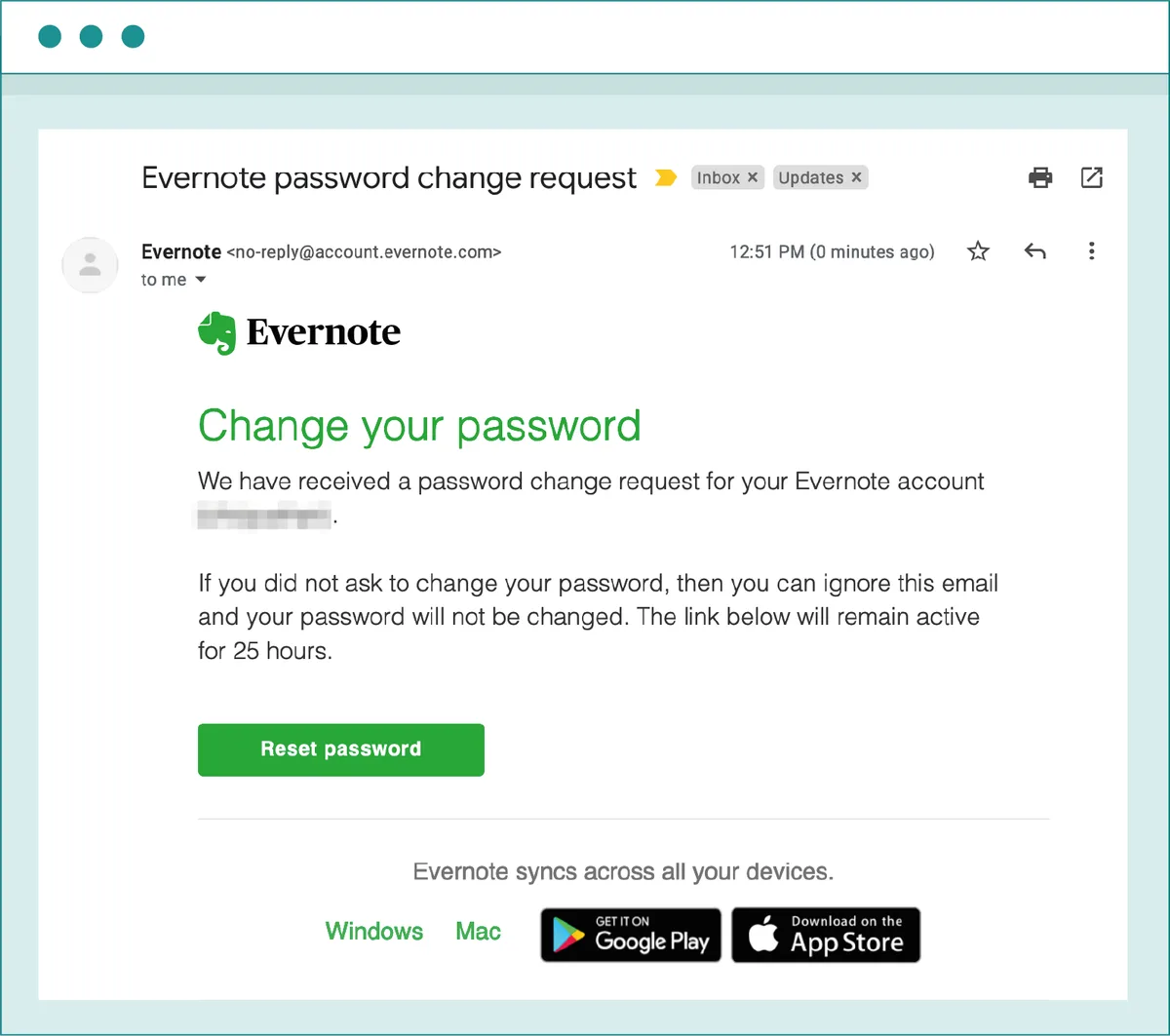
First, check your spam folder. Disney's reset emails often come from a "no-reply" address that spam filters love to catch. Look for an email from "Disney+ Support" or "The Walt Disney Company." The subject line is usually "Reset your password" or "Disney Account password reset."
Second, make sure you're checking the right email account. If you have multiple email addresses, you might have typed the wrong one or you might be looking in the wrong inbox. Sign out of all email accounts and sign back into the one you think you used when you signed up.
Third, check for email forwarding. If you originally signed up with an email that forwards to your current address, the reset email might still be sitting in the original inbox.
Fourth, wait a full 10 minutes. Disney's system can be slow during peak hours. If nothing arrives after 10 minutes, request a new reset link.
Each new request invalidates the previous one, so only the most recent link will work.
Creating a password that actually sticks
Once you click the reset link, you land on a page where you can create a new password. Disney+ requires a minimum of six characters but doesn't have strict complexity rules. You don't need uppercase, lowercase, numbers, and special characters.
That said, don't make it easy to guess.
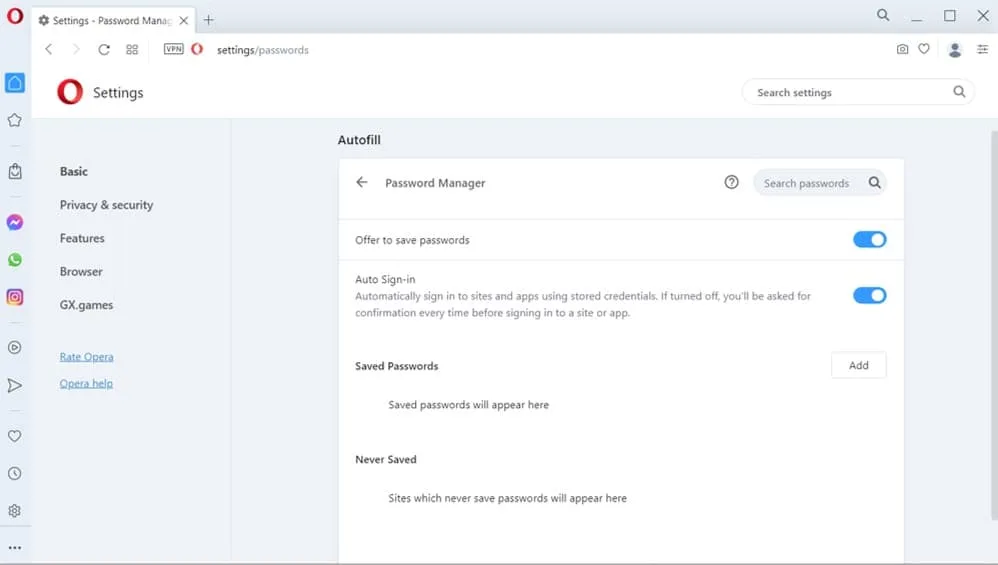
Choose something you'll remember without writing it on a sticky note. A phrase with a couple of numbers works better than random characters you'll forget tomorrow. Write it down in a password manager if you use one.
If you don't use a password manager, this is a good time to start.
Hit "Save" or "Reset Password." The system logs you in automatically on that browser. You can start watching immediately, but your other devices still have the old password saved. You'll need to update those separately.
Step-by-Step: Resetting From a Streaming Device
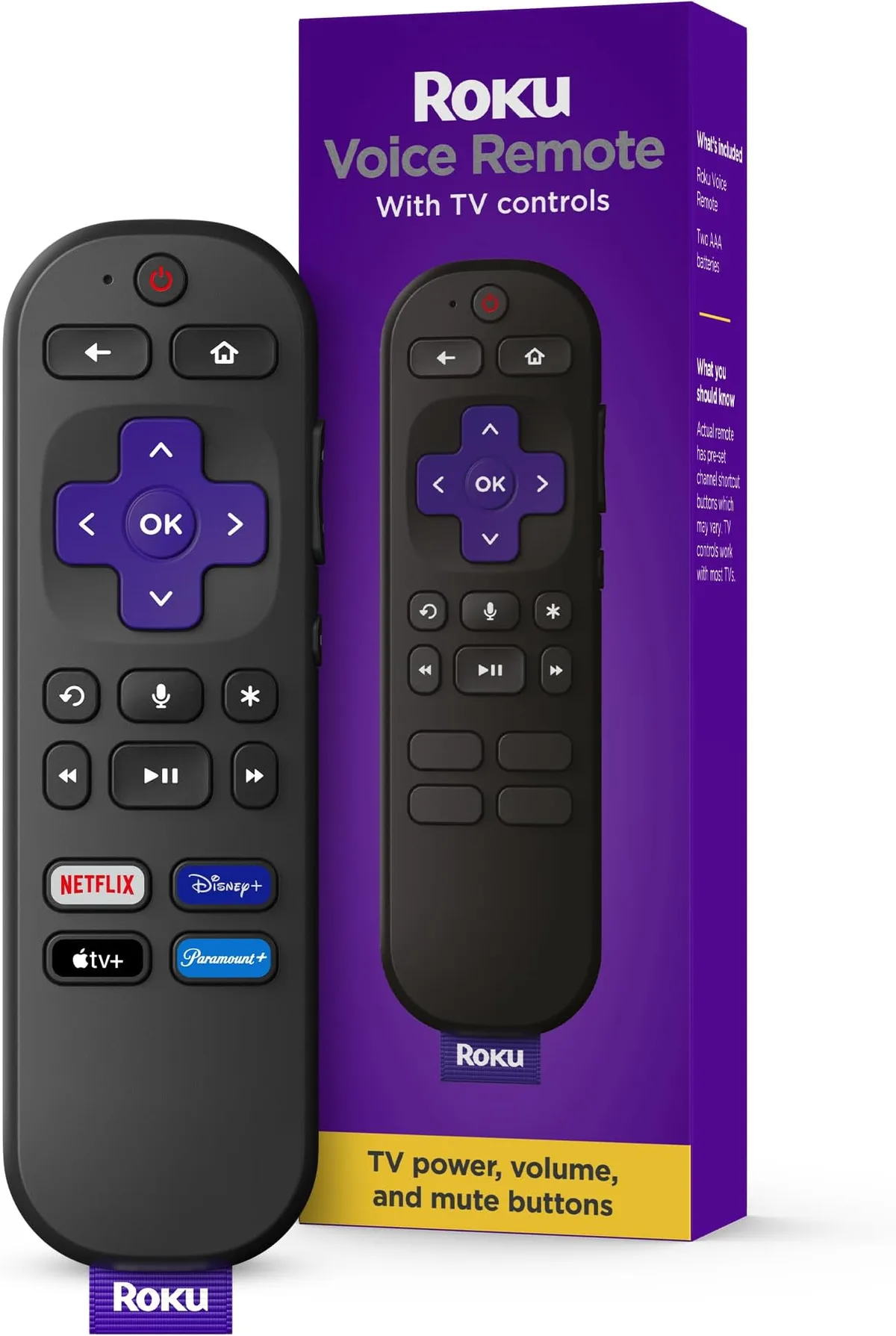
Sometimes you're already on your couch with a Roku remote in hand and you don't want to find your laptop. You can attempt a password reset from a streaming device, but the process is clunkier and often sends you back to a browser anyway.
When you have no choice but to use the app
You have a choice. You always have a choice. Get up, grab a laptop, and use the browser method.
It's faster and less frustrating. The only time you genuinely need to use the device's app is if you literally don't own any other device with a browser. If that's your situation, here's what to expect.
The hidden menu path on Roku, Fire Stick, Apple TV, and Smart TVs
On most streaming devices, open the Disney+ app and go to the login screen. You'll see the email and password fields with a "Forgot Password" link underneath. Clicking that link typically opens a web browser on the device itself.
Some devices can't handle embedded browsers well. On an Amazon Fire Stick, the browser experience is terrible and you're better off using your phone.
On a Roku, the "Forgot Password" link might not appear at all depending on the app version. If you don't see it, your only option is to use a different device. On Apple TV, the link usually works and opens Safari on the same device.
The process is the same as the browser method once the page loads.
On a smart TV, it completely depends on the TV brand's built-in browser. Some Samsung and LG TVs handle it fine. Others throw an error.
If you hit a dead end, switch to a phone or computer.
Why this method often loops back to a browser anyway
Here's the annoying part. Even if the device successfully opens a browser and sends you a reset email, you still need to open that email on a device capable of clicking the link. If your TV's browser is the only thing open, you'll use the TV's remote to navigate a web page with a tiny cursor.
It works, but it's painful.
The faster approach is to use your phone for the entire process. Open your phone's browser, request the reset, check your email on the same phone, click the link, set a new password. Then sign into the streaming device with the new password.
Total time: about three minutes. Grinding through a smart TV browser takes ten minutes and half your patience.
What to Do If You Can't Access Your Email
This is where things get tricky. If you don't have access to the email address on your Disney+ account, the standard reset process hits a wall. The system sends the reset link to an inbox you can't open.
You're stuck looking at a confirmation screen knowing the email is sitting in a digital mailbox you'll never log into again.
Your options when the reset email never arrives
You have three paths forward. The first is recovering your old email account itself. If you used a Gmail, Yahoo, or Outlook account you abandoned years ago, most providers let you regain access through account recovery.
Google's recovery process, for example, uses backup email addresses and phone numbers you may have set up years ago. If you can get back into your email, you can reset your Disney+ password within minutes.
The second option is using the phone verification method, but only if you added a phone number before getting locked out. If you didn't, this route is closed to you right now. That's a frustrating reality check, but it's also a reminder to add a phone number once you're back in.
The third option is contacting Disney+ support directly. This is the slowest path, but it works. We'll cover the specifics of that in the support section.
Recovering your email first vs. contacting Disney support
Here's the decision tree for this situation. If you have any chance of recovering your old email account, do that first. It's faster than going through Disney support.
Email providers have automated recovery flows that take anywhere from a few minutes to 24 hours. Disney support can take hours or days depending on their queue.
If you can't recover your email and you never added a phone number, support is your only option. Before you start that process, gather every piece of information about your account you can find. The email address you used.
The name on the account. The payment method. The date you subscribed if you remember it.
Any of these details can speed up the verification process.
The phone verification workaround (if you set it up)
If you did add a phone number but can't remember whether it's current, try it anyway. Request the SMS code and see what happens. If the system sends the code to a number you still have, you're back in business.
If it sends to an old number you can't access, you're back to the support route.
One thing to note here: Disney+ doesn't use two-factor authentication in the traditional sense. The phone verification is strictly for password recovery. You can't enable it as a login security measure.
This means even if you add your phone number today, it won't protect your account from unauthorized access the way 2FA would on other services. It just gives you a backup recovery method.
Handling Third-Party Sign-Ins (Apple, Google, Amazon)
This section might be the most valuable part of this whole guide. A surprisingly large number of people signed up for Disney+ using a third-party login and have no idea that they don't have a password at all. If you fall into this category, the standard reset process will never work for you.
If you signed up with Apple ID and can't find your password
When you sign up for Disney+ using "Sign in with Apple," Apple creates a relay for your email. Disney never sees your actual email address. Apple gives Disney a unique, random email address that forwards to your real inbox.
The result is that there is no password to reset because you never created one.
To log in again, you must use "Sign in with Apple" every time. There's no password field to fill in. You authenticate through Apple's system using Face ID, Touch ID, or your Apple ID password.
If you're trying to log in on a non-Apple device like a Roku or a Fire Stick, you'll need to find the "Sign in with Apple" option on the Disney+ login screen. It's usually below the email and password fields.
If that option isn't showing up on your device, try logging into Disney+ on a browser on your iPhone or iPad first. Once you're signed in there, you can usually authorize the device later through account settings.
If you used Google or Amazon login
The same concept applies to "Sign in with Google" and "Sign in with Amazon." Your actual authentication happens through Google or Amazon, not through Disney. You don't have a Disney password. You can't reset one.
You must use the Google or Amazon sign-in button each time.
The tricky part is that not all devices display these third-party login options in the same way. On some smart TVs and streaming sticks, the Disney+ app only shows email and password fields. The third-party buttons might be hidden in a menu or might not appear at all.
If you can't find them, open the Disney+ website on a phone or computer. The third-party options are always visible there.
How to unlink or switch to email-based login
You can't unlink your third-party account and create a password-based login from scratch. Disney+ doesn't offer that option in account settings. If you want to switch to email-based login, you'd need to create a new Disney+ account with a different email, which means losing your watchlist, profiles, and viewing history.
Your better option is to stick with the third-party login and make sure you have access to that third-party account. If you lose access to your Apple ID or Google account, you lose access to Disney+ until you recover those accounts first. Keep your Apple ID and Google credentials safe since they're effectively your Disney+ password now.
Security Risks After a Reset
Changing your password gives you a clean slate, but it also creates some security situations you need to be aware of. A password reset isn't just about typing a new password. It changes the security posture of your entire account.
Why changing your password kicks everyone off (and that's good)
When you reset your Disney+ password, the system invalidates all existing login sessions. Every device that was signed into your account gets logged out. This includes your own devices and any devices belonging to people you shared your password with.
This is a feature, not a bug. If you changed your password because someone unauthorized was using your account, the reset immediately locks them out. They can't watch another episode until they somehow get the new password.
For shared family accounts, this means everyone needs the new password before they can watch anything.
What happens to saved passwords on devices
Here's the catch. Resetting your password doesn't erase saved passwords from devices. Your Roku, your smart TV, your phone's Disney+ app, they all still have the old password saved in their login fields.
When the app tries to authenticate with the old password, it fails. You see the login screen again.
Some devices will prompt you for a new password automatically. Others will just show an error and make you figure out what happened. If your Disney+ app suddenly asks you to log in again after a reset, that's normal.
Enter the new password and keep watching.
Whether you need to sign out of other devices manually
Disney+ doesn't have a "sign out of all devices" button in the account settings. The password reset itself handles that. Every device gets logged out automatically when the password changes.
You don't need to find each device and manually sign out.
If you want to stay signed into your own devices while kicking someone else off, a password reset is a blunt instrument. It affects everyone equally. The only way to selectively remove a device is to contact Disney support and ask them to revoke specific device access.
Support can do this in some cases, but it's not a standard self-service feature.
Common Mistakes That Keep You Locked Out
After looking at hundreds of user reports and forum threads about Disney+ login issues, certain patterns keep repeating. These are the mistakes that turn a five-minute password reset into an hour of frustration.
Typing the old password out of habit
You reset your password. You feel good about it. Then you go to your TV and your fingers automatically type the old password.
Your muscle memory betrays you. You see the error message and panic, thinking the reset didn't work.
Wait two seconds before you type. Think about what your new password is. If you can't remember it, go back to the browser where you're still logged in and check your account settings.
The password field there will show your last saved login, though it masks the characters.
Using the wrong email address
This is the most common mistake by far. People have multiple email addresses and they're not always sure which one they used for Disney+. You check one inbox, see no reset email, request another link, check a different inbox, nothing.
Meanwhile you're requesting reset links for an email that doesn't have a Disney+ account.
If you're not sure which email you used, try logging into Disney+ on a browser with each email address you own. Don't type a password. Just enter the email and click "Log In." If the email has an account, the system will prompt you for a password.
If it doesn't, you'll get a message saying no account exists with that email. Or the system won't say anything at all for security reasons, which makes this harder. In that case, try each email with the "Forgot Password" flow and see which one actually sends you a reset link.
Clicking expired reset links
A Disney+ password reset link expires after about 24 hours. Some users report shorter windows, especially for accounts that have been locked. If you request a reset, let the email sit in your inbox for two days, then click the link, it won't work.
You'll land on a page saying the link is invalid or expired.
Always request a new link if the old one has been sitting for more than a few hours. Each new request invalidates the previous one, so you only ever need to use the most recent link. Don't let multiple emails pile up and then try each one.
Only the last one matters.
Ignoring browser autofill shenanigans
Browser autofill causes more login headaches than almost anything else. Your browser saves the old password, and when you visit disneyplus.com, it fills in that old password automatically. You click "Log In" without looking, and the old password fails.
The fix is simple. Clear the saved password for Disney+ in your browser's password manager. On Chrome, go to Settings, Passwords, find disneyplus.com, and delete the saved entry.
Next time you log in, the browser won't auto-fill and you can type your new password manually. This also applies to password managers like LastPass, 1Password, and Dashlane. Delete the old entry and let the manager save the new one when you log in successfully.
When to Contact Disney+ Support
Most password resets succeed without ever needing human help. But some situations demand a real person on the other end. Knowing when to escalate saves you hours of pointless clicking and waiting.
Signs you're dealing with a deeper account issue
You need support if you've exhausted every self-service option. That means you tried the email reset and the email never arrived even after checking spam. You tried phone verification and you don't have a phone number on file.
You tried every email address you own and none of them match an account. You recovered your old email account but the reset link still doesn't work.
Another sign is when the system says your account doesn't exist. If you type your email address and Disney+ tells you there's no account with that email, but you've been paying for the service for two years, something deeper is wrong. Your account might have been deleted due to inactivity.
Or it might have been compromised and the email was changed.
A third sign is billing issues. If your payment method expired or was declined and Disney+ deactivated your account, you might not see the standard reset flow. The system treats deactivated accounts differently.
You might need to reactivate your subscription before you can reset the password.
What support can actually do (and what they can't)
Disney+ support can reset your password manually. They can confirm the email address on your account. They can tell you if a phone number is attached.
They can deauthorize specific devices. They can reactivate a deactivated account. They can investigate whether your account was hacked.
What they cannot do is change the email address on your account without proof that you own it. They cannot give you the old password. They cannot merge two accounts together.
They cannot transfer your watchlist or profiles to a different email. They also cannot bypass the verification process for security reasons. You will still need to prove you are the account owner.
The verification process typically requires you to confirm the email address on the account, provide the name on the account, and sometimes answer billing questions. If you subscribed through a third party like Apple or Amazon, the verification becomes more complex because Disney doesn't have your direct payment info. Be prepared for a longer call.
How to reach them without wasting hours in chat
Disney+ offers three support channels: live chat, phone support, and email. Our research across user forums suggests live chat is the fastest method during business hours. Phone support works well but you might wait 20 to 45 minutes.
Email support can take anywhere from 24 to 72 hours for a response.
To reach live chat, go to help.disneyplus.com. Click on the "Contact Us" button. The system asks you to describe your issue and then offers a chat option.
Choose chat over phone if you can. Chat agents can share links and screenshots. Phone agents can only talk you through steps.
Before you contact support, gather this information:
- The email address you believe is on the account
- The full name on the account
- The billing address on the account
- The last four digits of the payment card on file
- The approximate date you subscribed
- Your account's ZIP code or postal code
Having all of this ready cuts your support time in half. Support agents spend most of their time verifying identity. Give them what they need quickly and they can solve your actual problem faster.
One more tip. If you contact support and the agent asks you to try the reset process again, politely explain that you've already done that. Agents have scripts they follow.
The first person you talk to might just be reading from a troubleshooting list. If they can't help after two or three attempts, ask to be escalated to a senior agent. Senior agents have more tools and authority to bypass standard recovery flows.
Keeping This From Happening Again
You made it back into your account. Now take five minutes to make sure you never go through this frustration again. Prevention is painfully simple but almost nobody does it.
Where to store your password so you don't forget
The worst place to store a password is in your own memory. Human brains are terrible at remembering random strings of characters. The second worst place is a sticky note on your monitor.
The third worst is a plain text file named "passwords.txt" on your desktop.
Use a password manager. It does not matter which one. Bitwarden, 1Password, Dashlane, and even the built-in password managers in Chrome, Safari, and Firefox all work.
They save your password securely. They fill it in automatically when you visit disneyplus.com. You only need to remember one master password to unlock the manager itself.
If you absolutely refuse to use a password manager, write your Disney+ password down on a piece of paper and keep it in a place only you can find. A safe. A locked drawer.
A book on your shelf that nobody else would open. Do not keep it on your phone in a notes app. Do not keep it in your email drafts.
Do not keep it in a photo in your camera roll.
Setting up a recovery email and phone number now
Your Disney+ account settings let you add multiple recovery options. The default account screen only shows your primary email. But you can add a backup email and a phone number in the account management section at my.disney.com.
Log into your account on a browser. Go to your profile or account settings. Look for "Account Details" or "Security." Add a secondary email address and a phone number.
Make sure both are addresses you actually use. Not one you had in college. Not a work email you might lose when you change jobs.
This takes about two minutes. If you ever get locked out again, you'll have more than one path back in. That backup phone number or email turns a nightmare into a thirty second fix.
The one setting you should update today
Go into your Disney+ account settings and check your "Manage Devices" section. Disney+ lets you see every device currently authorized on your account. You can revoke access for any device you don't recognize.
If you see devices you don't own, someone else is using your account. Change your password immediately. Then revoke all unrecognized devices.
This is not paranoia. Shared account credentials spread faster than most people realize. If you gave your password to a friend last year, that friend might have shared it with someone else, and that someone else might have shared it further.
A quick device audit every few months keeps your account clean.
Frequently Asked Questions
Can I reset my Disney+ password without my email?
No, if you cannot access your email and you never added a phone number. You must contact Disney support. They will verify your identity through billing information and other account details.
Once verified, they can reset your password manually or help you update your email address.
How long does the reset link last?
Disney+ password reset links expire approximately 24 hours after they are sent. Some accounts see shorter windows if the account has been locked for security reasons. Always request a fresh link if the one in your inbox is more than a few hours old.
Each new request invalidates the previous link.
Will I lose my watchlist and profiles?
No. Resetting your password does not affect your watchlist, viewing history, or user profiles. All of that data is tied to your account, not your login credentials.
You will pick up right where you left off once you sign back in with your new password.
Can I use the same password again?
Yes, Disney+ does not prevent you from reusing a previous password. The system checks for minimum length and nothing else. However, reusing the same password defeats the purpose of a reset.
If you changed your password because someone else had it, using the same password again invites the same problem.
What if I'm locked out of a shared account?
If you are using a shared account and the owner changed the password, you need the new password from the account owner. There is no way to reset a password for a shared account without access to the primary email. Ask the account owner to share the new password or to add your device from their account settings.
If the account owner is unavailable, you cannot regain access through any standard recovery process.
How do I reset my Disney+ password on my TV?
Open the Disney+ app on your TV. Go to the login screen. Click "Forgot Password" if the option appears.
If it does not appear, you must use a browser on a different device. TVs and streaming devices have limited login interfaces. The fastest path is always a phone, tablet, or computer.

Similar Posts